Image Credits and Product Credits are Tryon's standard billing units. Every action that costs you something — generating a try-on photo or registering a new product — consumes one of these credits. This article explains exactly when each one is used, what happens when they run out, and how to keep track of what you have left.
The two credit types
Image Credits
One Image Credit is consumed every time a virtual try-on photo is generated. That includes try-ons started from:
- Magic Links — when a customer opens your shareable link and runs the try-on.
- Showroom — try-ons generated through the in-store showroom experience.
- Camera Mode — try-ons taken directly from the dashboard's camera feature.
Product Credits
One Product Credit is consumed every time you register a new product on the platform. That applies to all registration paths:
- Standard product registration through the dashboard.
- Mobile camera-based registration.
- Bulk imports from a Google Shopping feed.
Free updates after the first registration
Once a product is created, you can edit it as many times as you want — updating the photo, name, SKU, URLs or any other field never costs a credit. The Product Credit is only consumed on the initial registration.
What happens when Product Credits run out
If you exhaust your Product Credits for the month, you can keep registering products — Tryon automatically falls back to your Image Credits, consuming one Image Credit per new product instead. This way, your workflow is never blocked just because you've hit the product limit.
If both Product Credits and Image Credits are at zero, new product registrations will be blocked until your credits renew or you upgrade your plan.
Courtesy credits for your first Google Shopping import
If you are doing your first bulk import from Google Shopping, you can request courtesy credits to cover the catalog. This is meant to help you onboard your existing inventory without burning through your monthly allowance on day one.
Reach out to our support team with the size of your feed and we'll arrange the credits for you. See the Google Shopping import guide for the full step-by-step.
How to check how many credits you have
Both credit balances are displayed at the top of your dashboard home page. The Product Credits card shows your current balance over the monthly allowance (for example, 5 / 5), and the Credits card on the right shows your Image Credits.
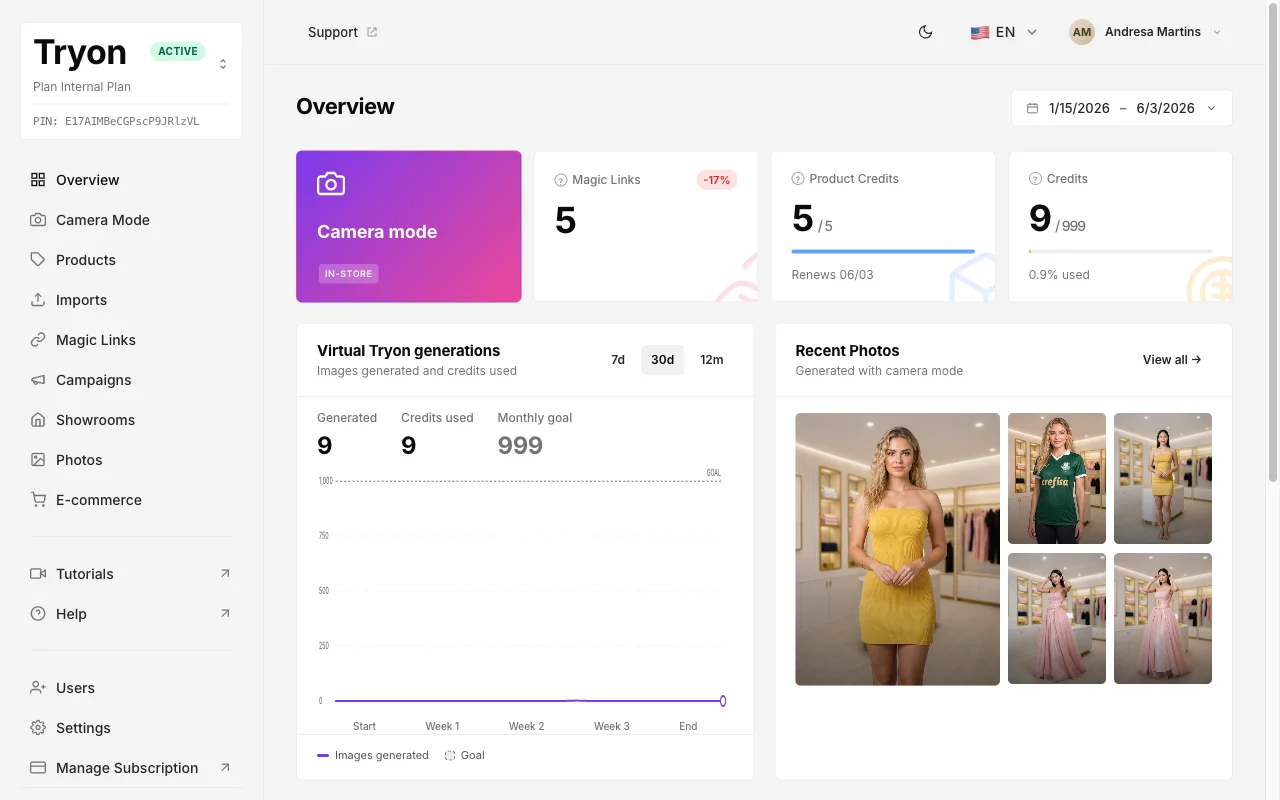
You can also see the renewal date right under the Product Credits card, so you always know when the next refill is coming.
Renewal and roll-over
- Credits renew every month, on the renewal date shown on your dashboard.
- Credits are not cumulative — any unused Image or Product Credits at the end of the cycle are not carried over to the next month.
Plan ahead
Because credits don't roll over, it's worth using your monthly allowance evenly across the cycle rather than leaving everything for the last week.
Quick reference
| Action | Credit consumed |
|---|---|
| Try-on generated via Magic Link | 1 Image Credit |
| Try-on generated via Showroom | 1 Image Credit |
| Try-on generated via Camera Mode | 1 Image Credit |
| New product registered (any method) | 1 Product Credit (or 1 Image Credit if Product Credits are exhausted) |
| Editing or updating an existing product | None |