A Magic Link is a unique, shareable URL that lets a customer virtually try on a specific product — no app download required. You create one link per product, set how many times it can be used and when it expires, then send it via any channel you choose.
When a customer opens the link, they are taken directly to the virtual try-on experience for that product.
How to find Magic Links
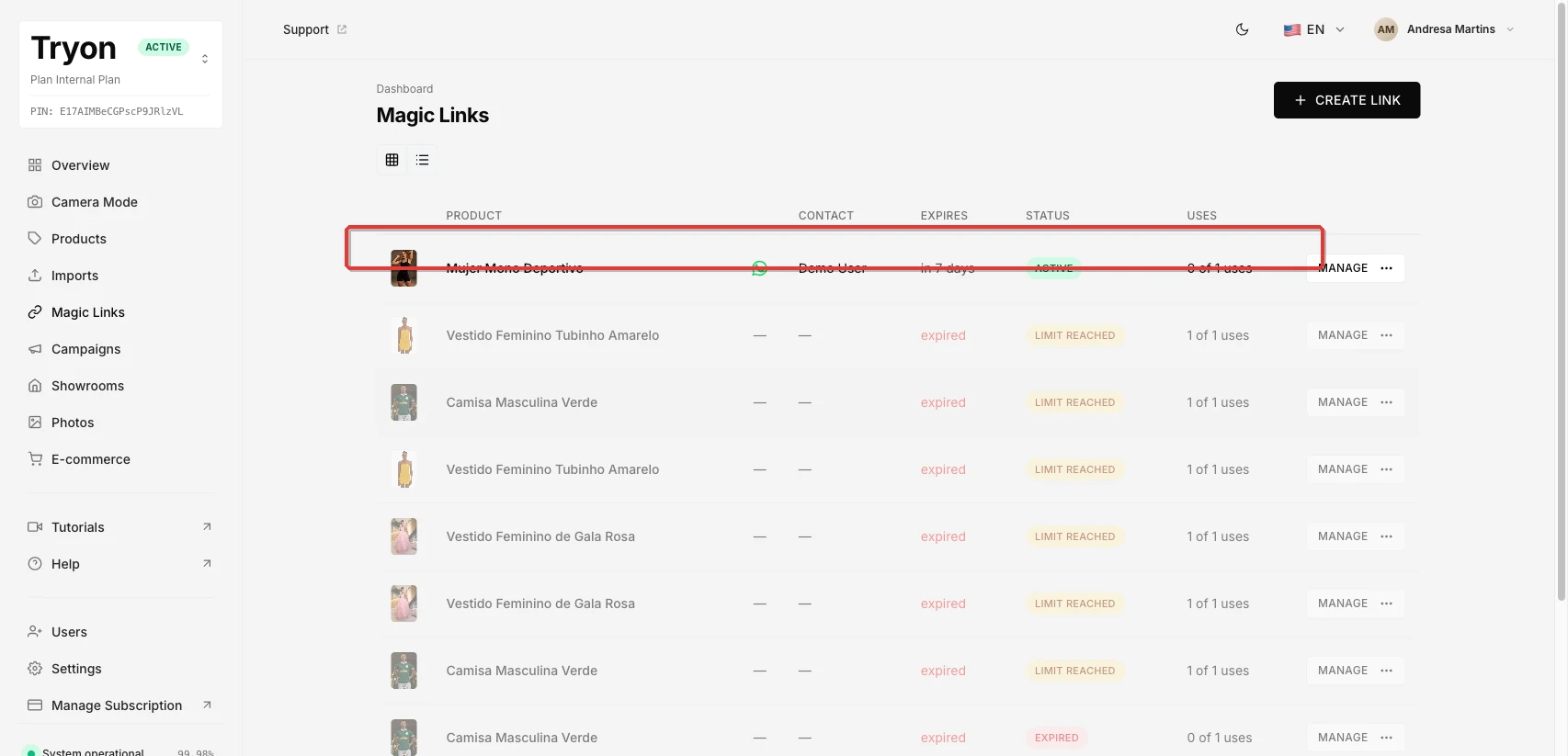
In the left sidebar, click Magic Links. The page lists every link you have created, along with its product, contact, expiration date, status, and use count.
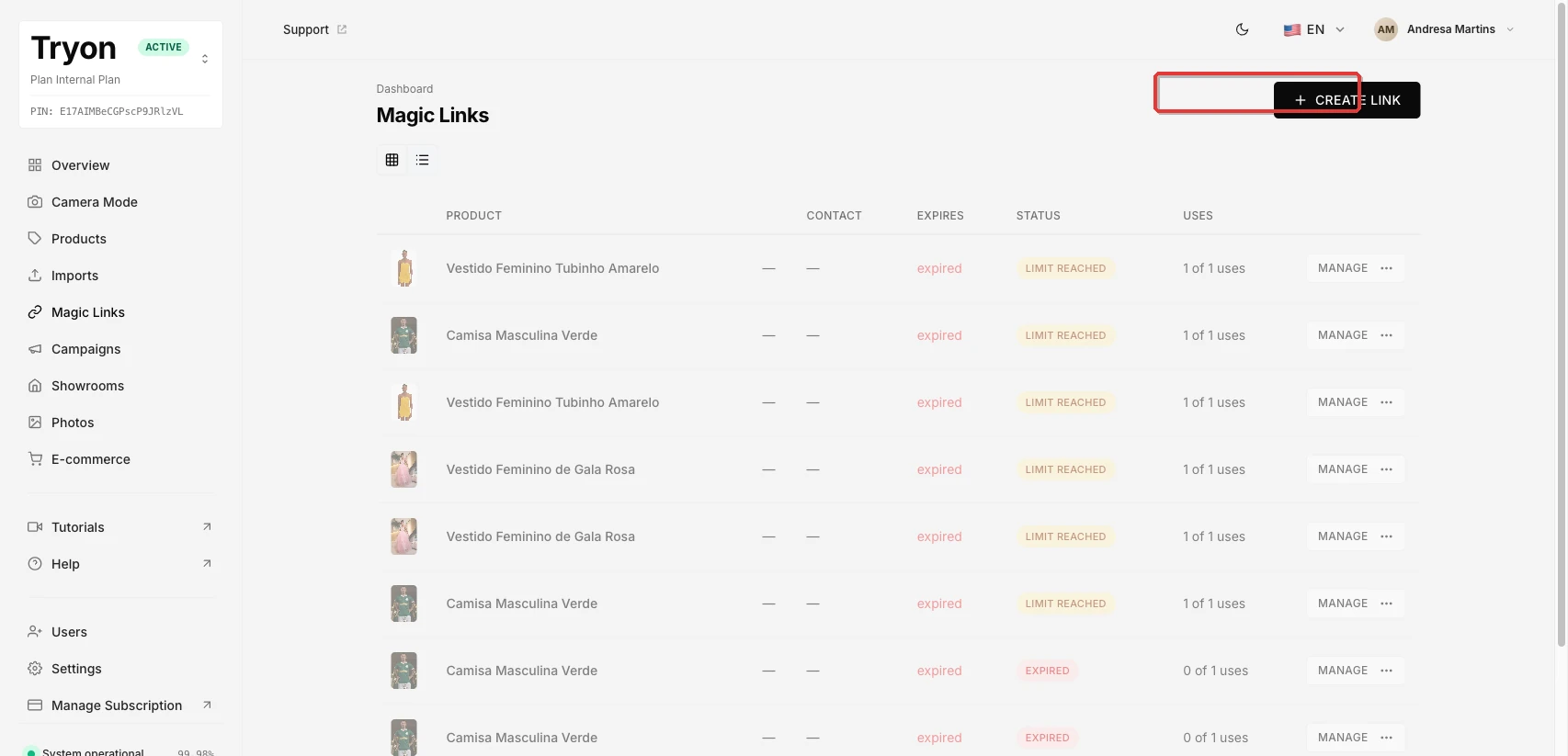
To create a new link, click + Create Link in the top-right corner.
Creating a Magic Link
The creation form has four sections. All fields marked with * are required.
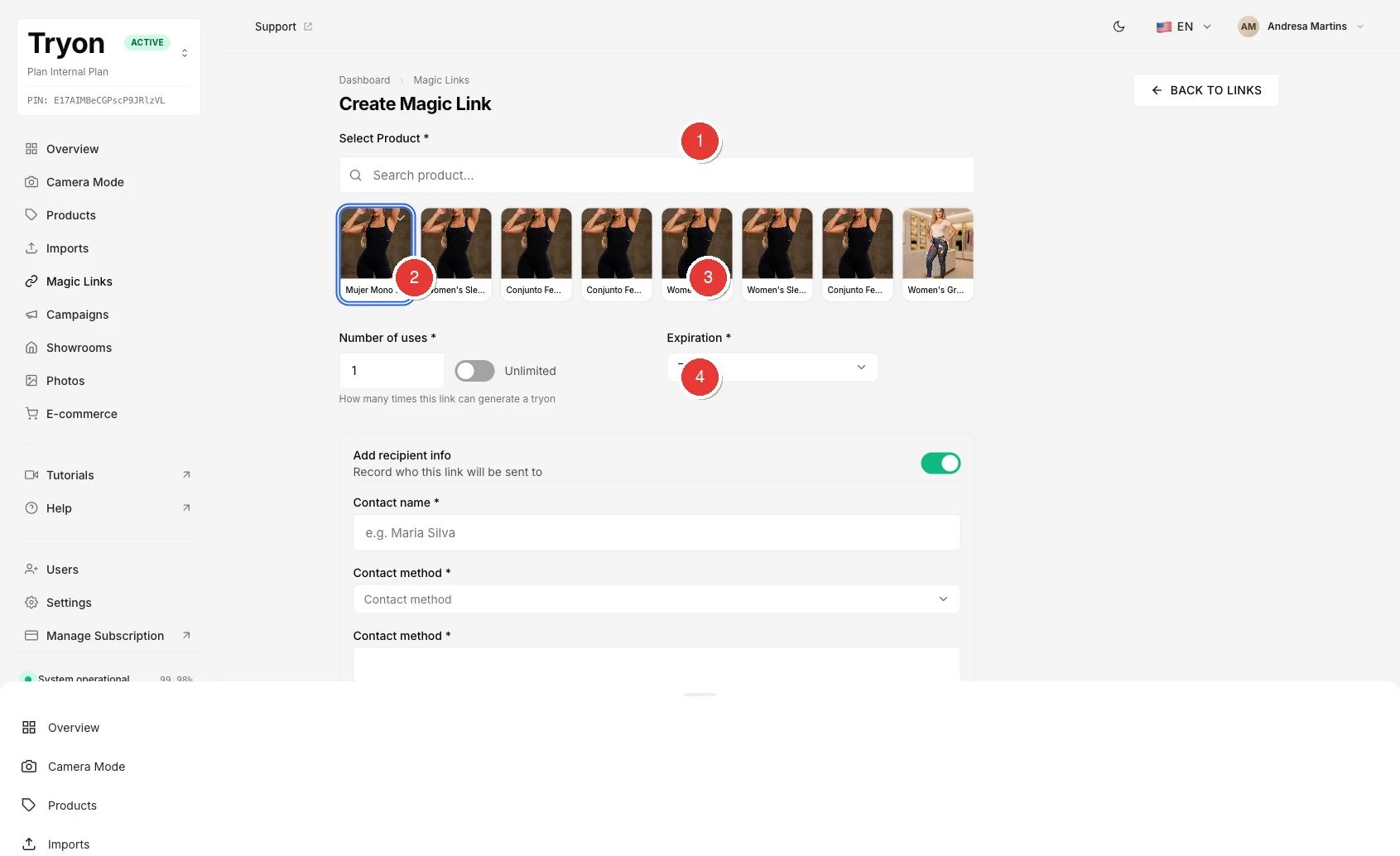
1. Select Product
Click the product you want to associate with this link. You can type in the search box to filter by name.
Each magic link is tied to exactly one product. The customer who opens the link will try on that product only.
2. Number of uses
Enter how many times this link can be used to generate a virtual try-on.
- The minimum value is 1.
- To allow unlimited try-ons, enable the Unlimited toggle. When the toggle is on, the number field is disabled.
Tip: A limit of 1 is useful when you are sending a personalised link to a single customer. Use Unlimited when sharing a link publicly (for example, on social media or in a group message).
3. Expiration
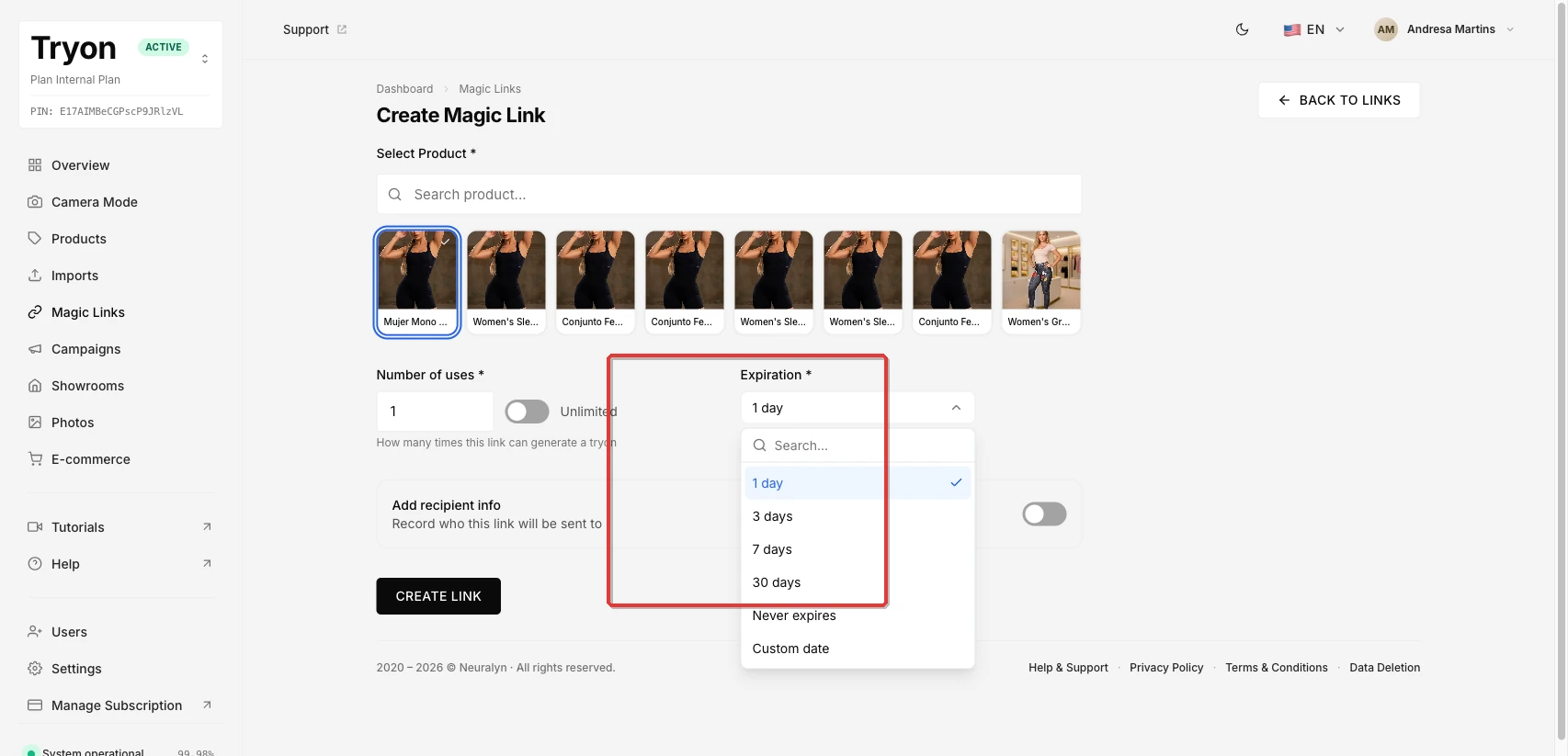
Choose when the link stops working. Open the dropdown to see the options:
| Option | What it does |
|---|---|
| 1 day | Link expires 24 hours after creation (default) |
| 3 days | Link expires 3 days after creation |
| 7 days | Link expires 7 days after creation |
| 30 days | Link expires 30 days after creation |
| Never expires | Link stays active until you manually deactivate or delete it |
| Custom date | A date picker appears — choose any future date |
Once a link expires, customers who open it will no longer be able to try on the product.
4. Add recipient info (optional)
Turn on the Add recipient info toggle if you want to record who will receive this link. This information is only visible to you in the dashboard — it is not shown to the customer.
When the toggle is on, three fields appear:
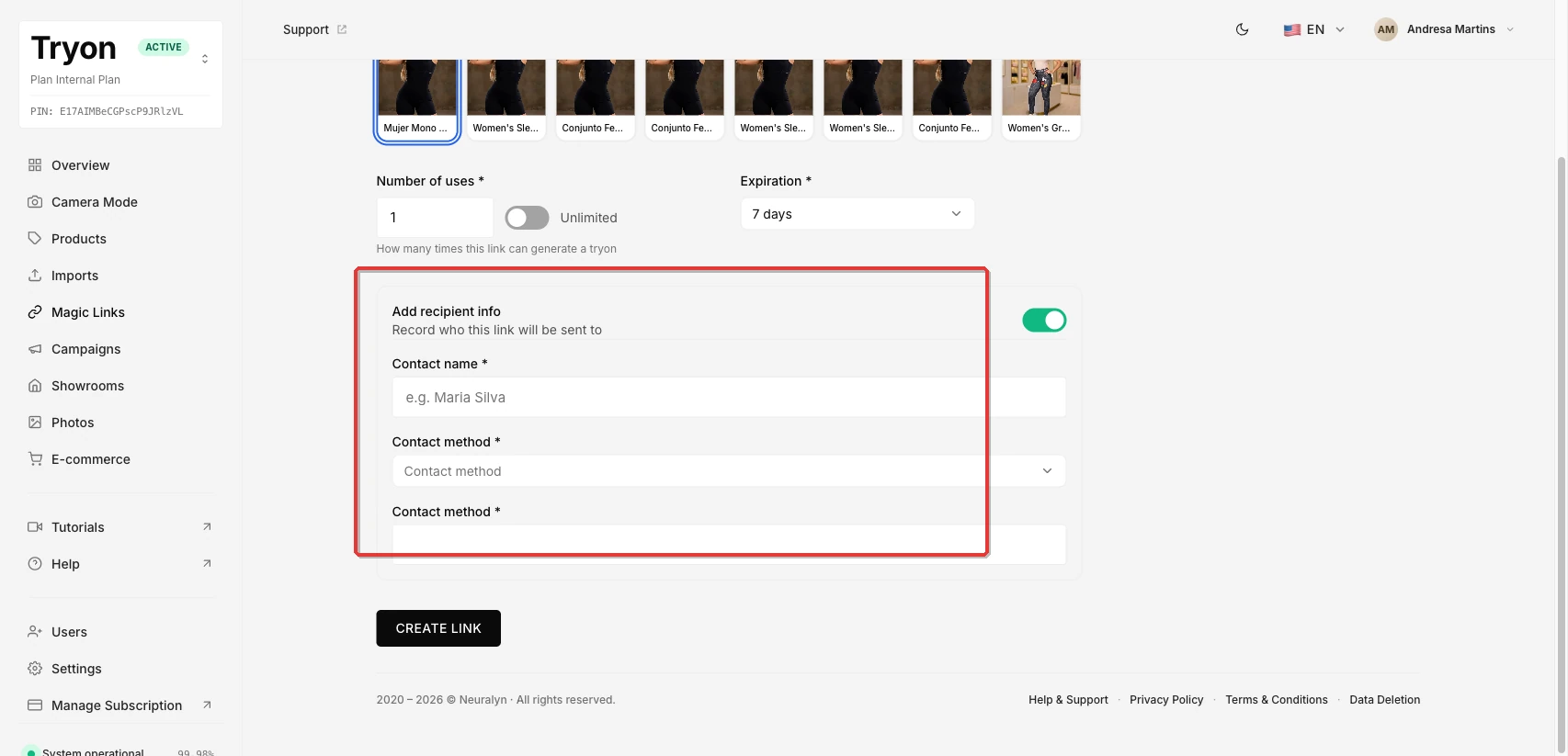
Contact name — the recipient's name (for example, Maria Silva). This is a free-text field.
Contact method — how you plan to send the link. Choose from:
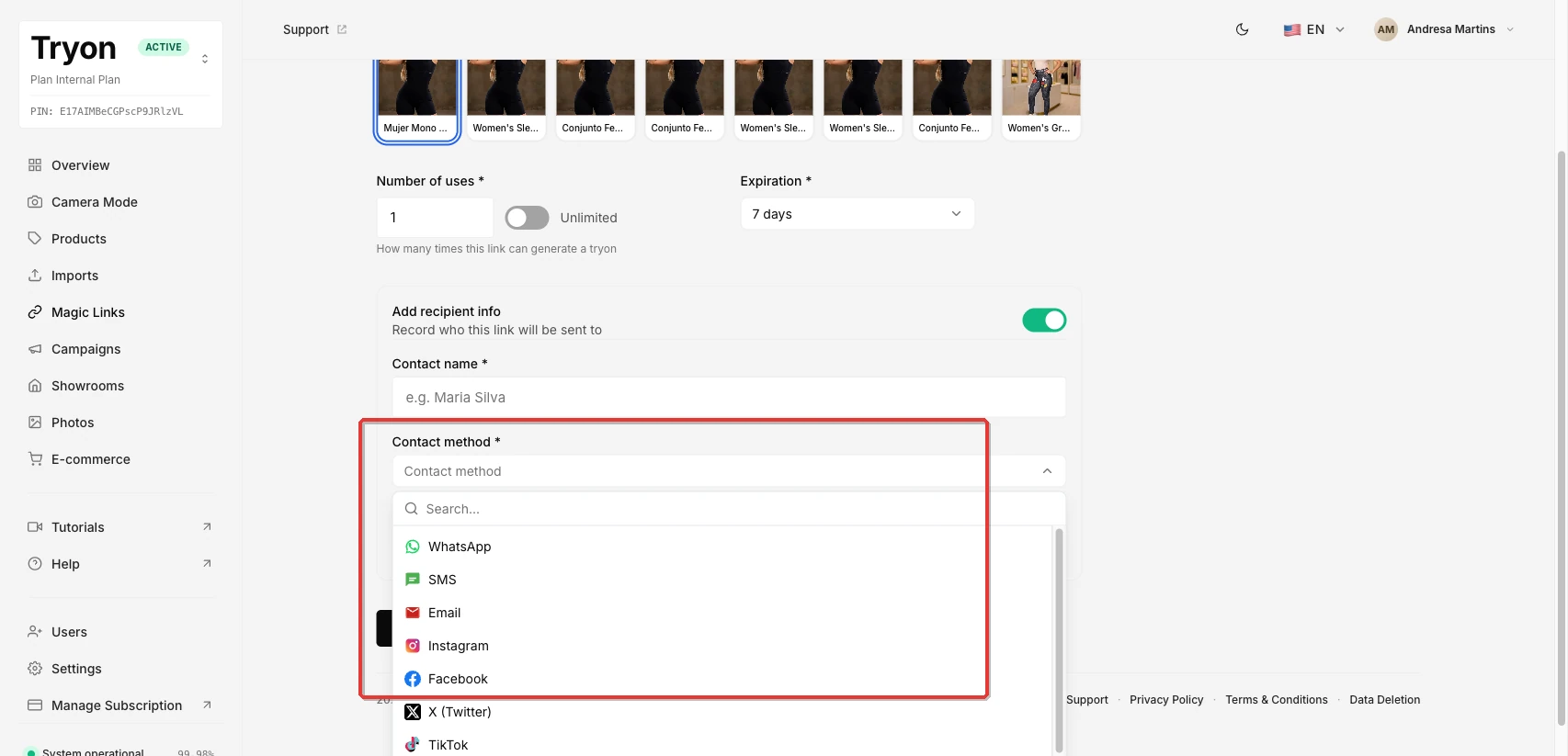
- SMS
- X (Twitter)
- TikTok
- Telegram
- Other
Contact info — the actual address for the chosen method (phone number, @username, or email address). The placeholder text changes to match the contact method you selected.
After you create the link
Click Create Link. If everything is valid, a confirmation modal opens.
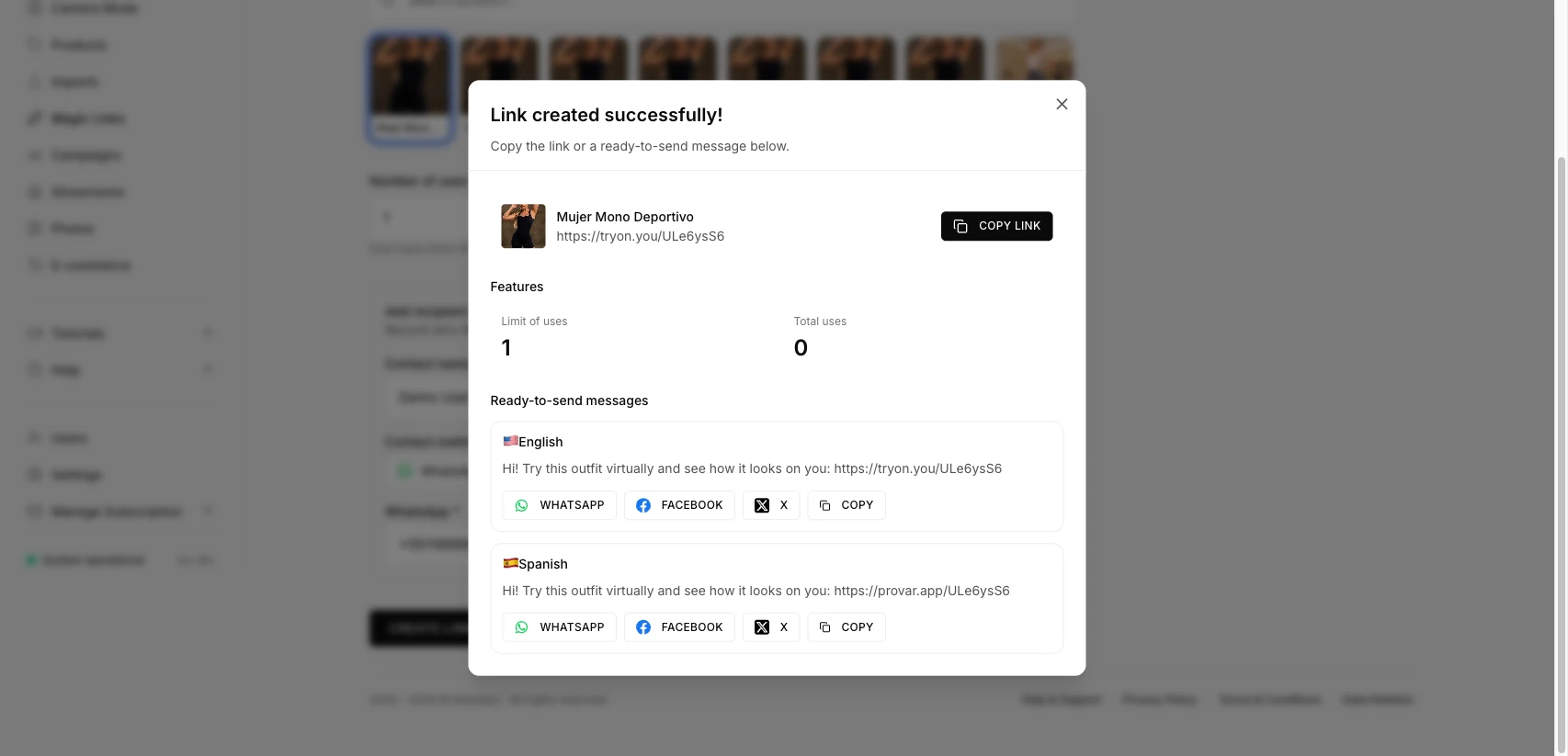
The modal shows:
- The link URL — click Copy link to copy it to your clipboard.
- Features panel — shows the use limit and the current use count.
- Ready-to-send messages — pre-written messages in multiple languages, each with share buttons for WhatsApp, Facebook, and X, plus a copy button.
Close the modal to return to the Magic Links list. The new link appears at the top of the list with the status Active.
What the customer sees
When a customer opens the link, they land on the virtual try-on page for the product you selected. No account or app download is required.
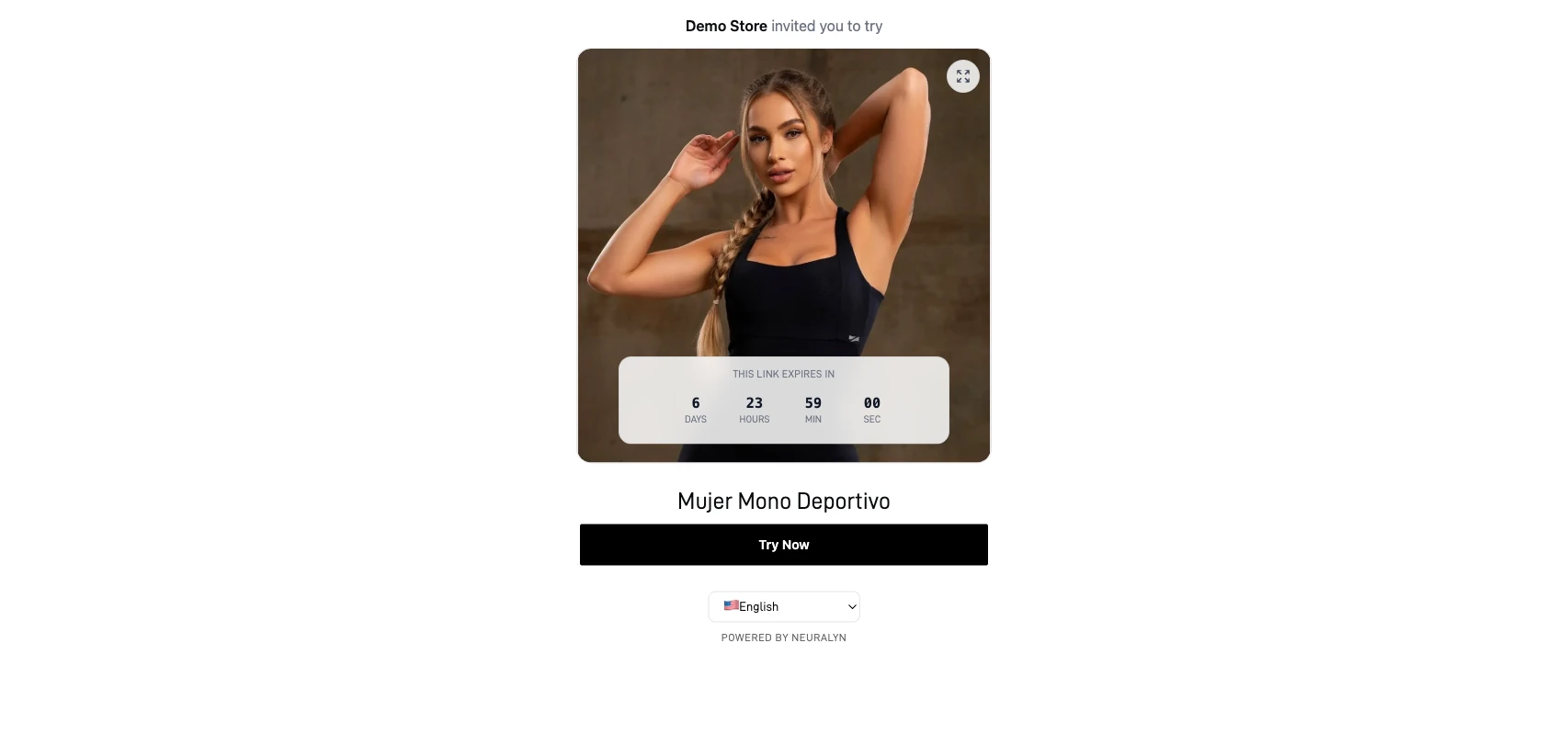
The page shows:
- The product image and name.
- A countdown to the link's expiration date, so the customer knows how long they have.
- A Try Now button that starts the virtual try-on.
Link statuses
| Status | Meaning |
|---|---|
| Active | The link is working and can be used |
| Expired | The expiration date has passed |
| Limit reached | The link has been used as many times as the limit allows |
| Used | The link was manually deactivated |
Didn't work?
"Please select a product" — You clicked Create Link without selecting a product. Click a product card in the grid and try again.
"Contact name is required" / "Contact info is required" — You enabled Add recipient info but left one of the required fields empty. Fill in all three fields or turn the toggle off.
The link opens but nothing happens — Check the link status in the Magic Links list. If it shows Expired or Limit reached, create a new link.